Building a Game with BrighterScript Game Engine
This guide is for developers building a game with BGE - it walks through the pieces you'll actually touch (Game, GameScene, GameEntity, Drawable, Collider) and how to put them together: setting up a game, adding a sprite, moving it, and detecting collisions. For a deeper look at how the engine implements these pieces internally, see Engine Internals.
What you're building on top of
BGE is an object-oriented 2D-first game engine for Roku channels, written in BrighterScript and distributed via ROPM. Everything lives under the BGE namespace. The examples/ folder in the repo has full sample channels (pong, breakout, asteroids, snake, platformer, rpg, 3d, canvas, pixels, quickstart, hybrid) that are the fastest way to see any of this in action - quickstart in particular is a minimal scaffold worth copying as a starting point for a new game.
Architecture at a glance
| Piece | What it is |
|---|---|
Game | The top-level engine object - one per app. Owns the main loop (Play()), the current GameScene, every other GameEntity, both canvases, and the asset registries (Bitmaps, Sounds, Fonts, Models, Scenes, Interfaces, Statics). |
GameScene | A GameEntity subclass that represents one state of your game - a title screen, a menu, a level. Only one is current at a time; switching scenes via Game.changeScene() destroys non-persistent entities. A scene can load its assets over several frames in onLoad(), before onCreate() runs (see Loading Assets). |
GameEntity | The base class for anything in your game world - a player, an enemy, a bullet. Exposes lifecycle hooks (onCreate, onUpdate, onCollision, onDrawBegin/onDrawEnd, onInput, …) meant to be overridden, plus position/velocity/rotation/scale. |
Drawable | The recommended way to put anything on screen - see below. A visual attachment on a GameEntity (Image, Sprite, AnimatedImage, DrawableRectangle, DrawableLine, DrawablePolygon, DrawableText, Model3d) that moves/rotates/scales with the entity automatically. |
Collider | A CircleCollider or RectangleCollider attached to a GameEntity, wrapping a roCompositor/roSprite region. Collision checks run through the compositor, not manual math. |
Renderer | Wraps an ifDraw2D surface (a Canvas's bitmap). Owns the SceneObjects it draws each frame and a Camera. There's one for the game canvas and a separate one for the UI canvas. |
Canvas | Pairs a bitmap with a Renderer and scale/offset. Game composites the game canvas and UI canvas to the physical roScreen independently each frame, so UI can stay crisp regardless of game-canvas scaling. |
UiContainer / UiWidget | A small retained-mode widget tree (Label, Slider, Style, Alignment) drawn to its own canvas layer above the game world. Game.gameUi and Game.debugUi are the two top-level containers. |
Three different "scenes."
BGE.GameSceneis the current state of your game (a title screen, a menu, a level) and is what this guide means by "scene." The renderer'sSceneObjects are the individual things it draws each frame, one or more perDrawable. Roku's SceneGraphGameScenenode is unrelated to both; it only matters if you mix the engine into a SceneGraph app (see SceneGraph Shapes).
Always draw through a Drawable, not by calling Renderer.Draw*() yourself. examples/asteroids is worth reading end to end as a reference for doing this consistently - every entity (Player, Rock, Bullet) is built entirely from addImage() + addCircleCollider() in onCreate, with no direct Renderer calls anywhere in gameplay code. Beyond being less code, it's what keeps a Drawable's visual position and its Collider's collision position guaranteed to agree - see why that guarantee exists if you're curious about the mechanism.
Setting up a game
Every BGE app follows the same shape: create a Game, define at least one GameScene, switch to it, then start the main loop.
sub Main()
  game = new BGE.Game(1280, 720) ' canvas size
  game.fitCanvasToScreen()
  game.loadBitmap("player", "pkg:/sprites/player.png")

  firstScene = new MainScene(game)
  game.defineScene(firstScene)
  game.changeScene(firstScene.name)

  game.play() ' runs until Game.End() is called
end sub
GameScene is just a GameEntity subclass - a natural place to spawn your initial entities in onCreate and to route global input (pause, quit) in onInput:
class MainScene extends BGE.GameScene
  sub new(game as BGE.Game)
    super(game)
    m.name = "MainScene"
  end sub

  override sub onCreate(args as roAssociativeArray)
    m.game.addEntity(new Player(m.game))
  end sub

  override sub onInput(input as BGE.GameInput)
    if input.isButton("back")
      m.game.End()
    end if
  end sub
end class
If a scene has a lot to load - big models, large images, a level built from thousands of pieces - load it in onLoad(loader, args) instead of onCreate. The engine spreads that work over several frames behind a loading screen, then calls onCreate once it's done:
override sub onLoad(loader as BGE.AssetLoader, args as roAssociativeArray)
  loader.load3dModel("ship", "pkg:/models/ship.obj")
  loader.loadBitmap("sky", "pkg:/images/sky.png")
end sub
See Loading Assets for custom loading work, loading screens and background loading.
Adding a sprite to an entity
A GameEntity doesn't draw anything on its own - you attach a Drawable to it, almost always from onCreate. addImage() is the common case: load a bitmap once (Game.loadBitmap), wrap it in an roRegion, and hand that to addImage().
class Player extends BGE.GameEntity
  width = 0
  height = 0

  sub new(game as BGE.Game)
    super(game)
    m.name = "Player"
  end sub

  override sub onCreate(args as roAssociativeArray)
    bitmap = m.game.getBitmap("player")
    m.width = bitmap.GetWidth()
    m.height = bitmap.GetHeight()

    ' SetPreTranslation centers the image on m.position instead of drawing
    ' from its top-left corner - the usual choice for a player/enemy/bullet
    region = CreateObject("roRegion", bitmap, 0, 0, m.width, m.height)
    region.SetPreTranslation(-m.width / 2, -m.height / 2)
    m.addImage("sprite", region)
  end sub
end class
A few other Drawable types for common cases, all added the same way (m.addWhatever(name, ...) in onCreate):
addSprite(name, spriteSheet, cellWidth, cellHeight)- aSpritefor a single frame cut out of a larger sprite sheet.addAnimatedImage(name, regions)- cycles through an array ofroRegions for a walk/idle/attack animation; seeexamples/pixels.addDrawableRectangle/addDrawableLine/addDrawablePolygon/addDrawableText- simple vector shapes and text, useful for placeholder art or UI-adjacent visuals in the game world.
Moving an entity
Every GameEntity has a position and a velocity (both BGE.Math.Vectors). Set velocity from onInput (or onUpdate, for AI/scripted movement) and the engine applies it to position automatically every frame - you don't move entities by hand.
override sub onInput(input as BGE.GameInput)
  ' input.x/input.y are -1/0/1 depending on which direction is held
  m.velocity.x = input.x * 300
  m.velocity.y = input.y * 300
end sub
velocity is in units per second (not "units per frame" - a value in the hundreds, like above, is completely normal). For movement that isn't a direct response to input - drifting, easing toward a target, gravity - do the math in onUpdate(deltaTime) instead, using deltaTime (seconds since last frame) the same way:
override sub onUpdate(deltaTime as float)
  m.velocity.y += m.gravity * deltaTime
end sub
rotation and scale work the same way as plain fields you set directly (there's no "rotational velocity" convenience - update rotation yourself in onUpdate if you want continuous spin).
Tweens
For movement that isn't velocity-driven - a UI panel sliding in, a paddle easing into position, anything that animates from A to B over a fixed duration - Game.tweenManager ticks every live tween once per frame and writes the interpolated value straight onto whatever field(s) you target, so there's no manual per-frame bookkeeping:
override sub onCreate(args as roAssociativeArray)
  ' ...set up position/Drawable as above, then...
  m.game.tweenManager.to(m.position, {x: 100, y: 50}, 1000, BGE.Tweens.Easing.QuadraticEaseInOut, {
    owner: m
  })
end sub
target is the object to write onto directly - m.position above, or a Drawable, or a plain associative array - not the owning entity itself, and not a dot-path string. Passing owner: m (a GameEntity) lets the manager clean the tween up automatically once that entity is no longer valid, including when a scene change destroys it; without an owner, hang onto the returned handle and call game.tweenManager.cancel(handle) yourself when you're done with it.
For a packed color field (0xRRGGBB/0xRRGGBBAA), use toColorRGB()/toColorRGBA() instead of to() - lerping the packed integer directly gives the wrong color, since each channel needs to be interpolated separately and repacked:
m.game.tweenManager.toColorRGB(myDrawable, "color", BGE.ColorsRGB.Red, 500)options also accepts onComplete (a sub(target as object) called once, with the tween's target, when it retires), loop (BGE.Tweens.TweenLoopMode.restart/.pingPong, default .none), and delay (milliseconds before the tween starts).
Colliders and collisions
Attach a collider the same way you attach a Drawable - addCircleCollider/ addRectangleCollider in onCreate - then override onCollision to react when it hits another entity's collider:
override sub onCreate(args as roAssociativeArray)
  ' ...set up the Drawable as above, then...
  m.addCircleCollider("body", m.width / 2)
end sub

override sub onCollision(myCollider as BGE.Collider, otherCollider as BGE.Collider, otherEntity as BGE.GameEntity)
  if otherEntity.name = "Rock"
    m.game.destroyEntity(m)
  end if
end sub
onCollision fires every frame the two colliders overlap. For a one-shot reaction - a door, a pickup, a trigger zone - override onCollisionEnter instead, which fires once when an overlap starts. onCollisionExit fires once when it ends, including when the other entity is destroyed (its otherEntity/otherCollider are then invalid):
override sub onCollisionEnter(myCollider as BGE.Collider, otherCollider as BGE.Collider, otherEntity as BGE.GameEntity)
  if otherEntity.name = "Player"
    m.game.changeSceneWithFade("CastleScene")
  end if
end sub
For a circle collider centered on the entity (the common case, matching a centered Drawable like the Player example above), the radius is all you need. RectangleCollider takes an offset_x/ offset_y too, and getting that offset right depends on how the entity is drawn:
addRectangleCollider(name, width, height, offset_x, offset_y) places the rectangle's top-left corner at (offset_x, offset_y - height) - so offset_y is the bottom edge, one full height below the top-left, not the top-left itself. In practice:
- Top-left-anchored (drawn at
position, growing down/right - aPaddleor aBrick): useoffset_y = height. - Centered (drawn with
SetPreTranslation, like thePlayerabove): useoffset_y = height / 2.
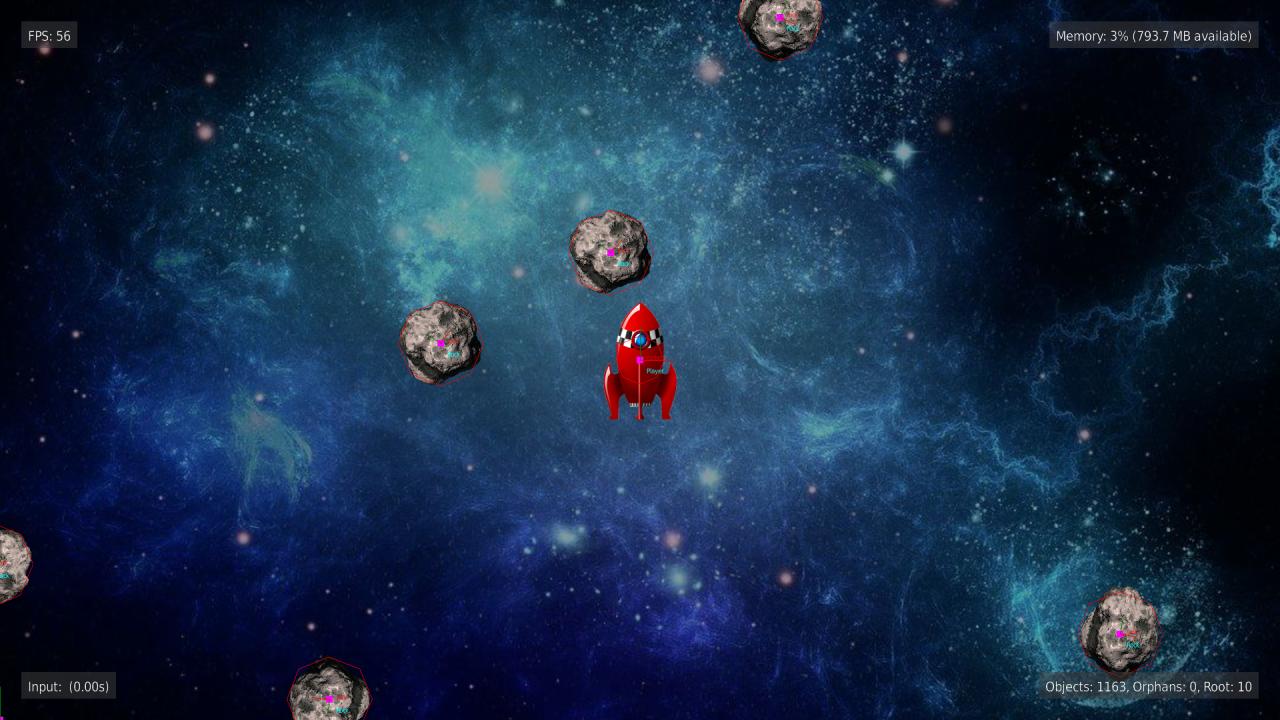
If a collider ever looks like it's registering at the wrong spot, Game.debugDrawColliders(true) draws every collider's actual bounds directly on screen, alongside each entity's name and position
- almost always faster than guessing from the offset math:
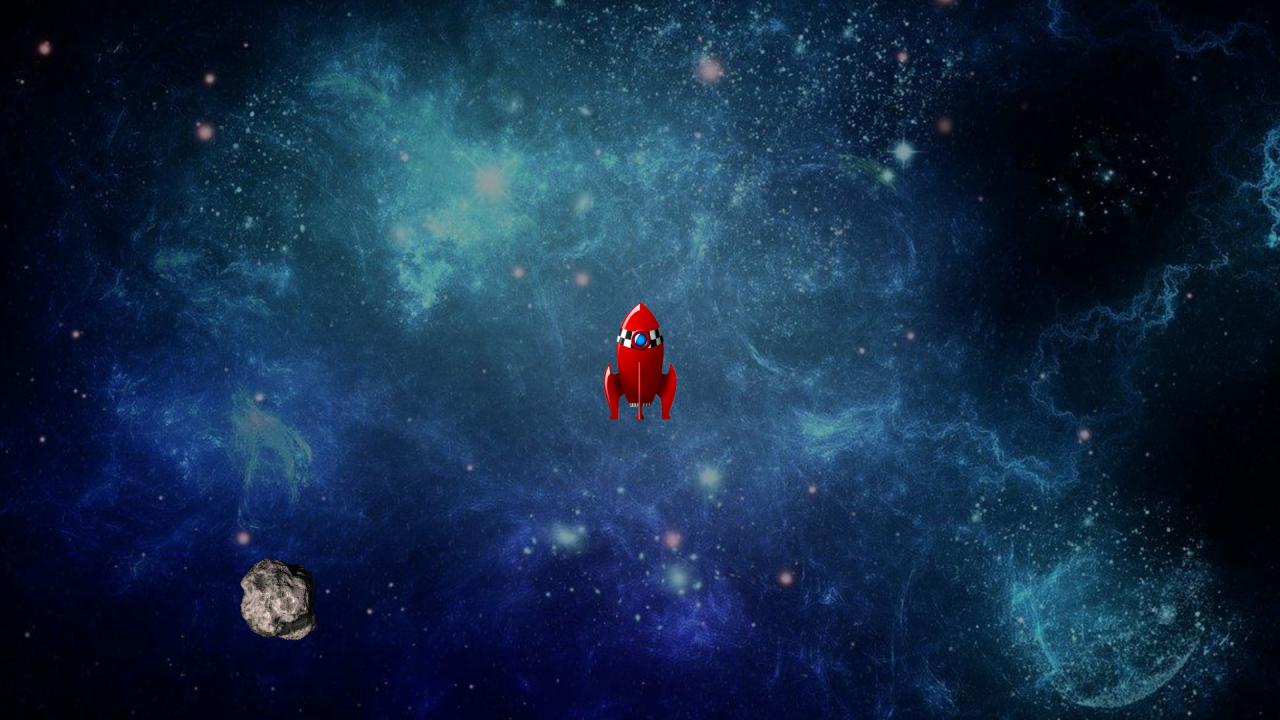
Compare that to the same scene with debug drawing off:
Everything above is detection - onCollision fires, but nothing stops two colliders from overlapping on screen. examples/platformer is the first example that also resolves what it detects: depenetrating the player out of solid ground/walls, tracking a grounded state so jumping only works while standing on something, and treating one-way platforms as solid from above but passable from below. None of that lives in the engine - it's ordinary onCollision logic built on top of the same detection-only colliders described above. Read Player.onCollision in examples/platformer/src/source/Entities/Player.bs for the concrete pattern.
One thing to know when resolving: colliders that only touch edge to edge don't overlap, so they don't collide. Once you've snapped the player flush onto the ground, onCollision won't fire for it next frame unless something moves the player back into it. A "grounded" flag that you clear every frame and expect onCollision to set again will flicker. Keep applying gravity while grounded, or check for ground directly, as the platformer's Player does.
Walls in a top-down game
For top-down movement against static walls, BGE.SolidWorld does the resolving for you. Add the solid rectangles once when the scene is built, then move each walker's feet box through them instead of setting its velocity. It stops the box flush against walls, slides it along them, and eases it around corners it only just clips:
' In the scene's onCreate:
m.solidWorld = new BGE.SolidWorld()
m.solidWorld.addBounds(0, 0, mapWidth, mapHeight)
m.solidWorld.addSolid(wallX, wallY, wallWidth, wallHeight)

' In the player's onUpdate (the feet box is 20x12, its bottom-centre at the entity's position):
feetBox = {x: m.position.x - 10, y: m.position.y, w: 20, h: 12}
result = m.solidWorld.moveAndSlide(feetBox, moveX * speed * dt, moveY * speed * dt)
m.position.x = result.x + 10
m.position.y = result.y
Rectangles are {x, y, w, h} with (x, y) the bottom-left corner. Pass {cornerNudge: 0} as a fourth argument for moves that shouldn't be eased around corners, like a knockback. examples/rpg's Player and Rat both move this way.
addSolid returns an id. Pass it to removeSolid(id) to take that rectangle back out, for example when a door opens.
Following the player with the camera
The default camera is a BGE.Camera2d centred on camera.setTarget(point). For a world bigger than the screen, let it follow an entity and keep it inside the level:
camera = m.game.canvas.renderer.camera as BGE.Camera2d
camera.setBounds(0, 0, levelWidth, levelHeight)
camera.follow(playerEntity)
follow() re-centres on the entity every frame after every onUpdate has run, so the view is never a frame behind. setBounds() stops the view showing past the level's edges (and centres a level that's smaller than the screen); it also applies to plain setTarget() calls.
The game loop
Game.Play() runs one main loop. Every frame goes through six steps, always in this order:
A few things fall out of this that matter in practice:
- Entity order: the current
GameSceneis always processed first and last; everything else (sortedEntities) runs inzIndex(insertion) order in between. - Callbacks can invalidate their own entity. A callback might call
Delete()on itself, or trigger a scene change. That's why the engine re-checksisValidEntity()before every single callback - if you write code that processes many entities in a loop (rare for game code, common for engine-level tooling), follow the same pattern. - Scene changes are deferred to end-of-frame. Calling
Game.changeScene()mid-frame doesn't swap the scene immediately - it's applied after the draw/swap step, once the current frame is fully done with the old scene. Game.changeSceneWithFade(name, args)fades to black, changes scene, then fades back in after the new scene'sonCreate.Game.isTransitioning()is true for the whole thing, so check it before acting on gameplay input. With no current scene yet, it changes scene straight away and fades in from black - a handy way to start the first scene.
Debugging tools worth knowing early
Game.debugDrawColliders(true)/Game.debugDrawEntityDetails(true)/Game.debugShowUi(true)- toggle these from an
onInputhandler (most examples bind them to theoptionsremote button) to get the collider-outline view above, plus per-entity name/position labels.
- toggle these from an
Game.getDebugUI().addChild(new BGE.Debug.FpsDisplay(game))andBGE.Debug.InputDisplay/MemoryDisplay/GarbageCollectorDisplay/LogDisplayare ready-made debug widgets - every example wires up at least the FPS display inmain.bs.Game.log(message, level)records a message (BGE.Debug.LogLevel.info/warning/error, defaulting toinfo) that's both printed and kept in a short historyBGE.Debug.LogDisplayreads from - prefer it over a rawprintin your own game code so failures are visible on-screen, not just over telnet.examples/rendererTestis a menu-driven suite ofRendererdemos built withoutGame/GameSceneat all - useful for trying out a specific rendering capability (draw modes, triangle warping, camera projection) in isolation before wiring it into a real game.
Where to go next
- Skim
examples/quickstartfor the smallest possible working game. - Read
examples/asteroidsas the reference for building entities entirely out ofDrawables/Colliders, with no directRenderercalls in gameplay code. - Read
examples/breakoutorexamples/pongfor a complete, small, real game with comments explaining the collider-offset and velocity choices made for each entity. - Loading lots of assets, or building a big level? See Loading Assets for
onLoad(), loading screens and background loading, andexamples/loadingfor a runnable demo. - Building a level out of tiles? See Tile Maps for baking the ground, tile collision for side-scrolling and top-down games, and auto-tiling.
- See Engine Internals for how the renderer, camera, and collision system fit together under the hood - useful once you're debugging something that doesn't behave like the docs above suggest it should.